Showing posts with label Image Search. Show all posts

More Pictures in Google Search

When you type a query that's popular in Google Image Search, Google's Web search engine shows a list of the most relevant images in an OneBox result. If you add "pictures", "images" to your query, the OneBox now includes a lot more images.

"If we detect that your query has 'high image intent' (meaning, we're pretty sure you're looking for images) we'll start showing more images on the page. If you add words like 'photos', 'pictures', and 'images' to a query, that means you're probably not looking for a blog post or video. Showing more images on the main search results page makes it just that much faster to find the image you're looking for," informs Google.


Another change is that Google will show a larger thumbnail when you mouse an image from the OneBox, just like in Google Image Search. The OneBox result now looks like the first page of images search results, but it's interesting to notice that the ranking is slightly different.

Google Image Search in SSL

Probably the most important missing feature in Google SSL Search was image search. Now this feature is available, but there's a drawback: the page that shows a bigger image preview doesn't use SSL.


Google's encrypted flavor supports most of the features of the regular Google site. The left side of the navigation bar is still missing, you can't use Google Instant and the Wonder Wheel, but hopefully these features will be added in the near future.

Google Chrome has recently implemented a feature called SSL False Start which "reduces the latency of a SSL handshake by 30%". SSL sites load slower and one of the reasons is that SSL handshakes are more CPU intensive, use more network round-trips and more packets.

Google Image Search Clustering

Google Image Search added a new feature that lets you group images by subject. Instead of showing images related to different topics in a single view, Google's image search engine finds the most relevant related searches and shows the top results for each category. For example, when you search for [dog], Google shows the results for [german shepherd], [golden retriever], [great dane], [pug dog], [boxer dog], [rottweiler dog], [border collie] and more. Unfortunately, the clusters for [cat] aren't that great: [funny cats], [cute cats], [cats and kittens], [fat cat], [lol cats].


"Sorting gives you a new way to start your search by exploring categories visually. If you need a particular image, like a picture of coffee for a presentation, sorting can help you hone in on exactly what you're looking for. Searching for broad topics sorted by subject, like the 1940s or Sydney, allows you to explore and learn visually," explains Google.

You only need to select "images" from the Google sidebar and click "sort by subject". By default, Google still sorts the results by relevance.

Google Highlights Recent Image Search Results

Google started to index images a lot faster and it now even highlights recent results by showing a small label like "1 day ago" or "22 hours ago" below the image. You can't yet restrict the results to recent images, but I'm sure that this feature will be available in the near future.

Here's an example of a query that returns many recent results. It's easy to notice that not all the results are from news sites, so the images aren't from Google News.

Google Docs, Image Search and Copyright

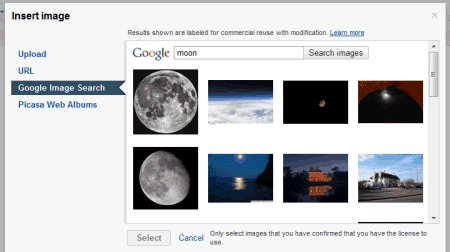
Google Docs lets you pick Image Search results and add them to your documents. That's a good thing, but this feature could have been better thought out.

Google restricts the results to images licensed as Creative Commons that can be used commercially and that can also be modified. These restrictions aren't always necessary, since not all documents are used for business purposes. Google also recommends to "only select images that you have confirmed that you have the license to use", but it doesn't link to the pages that included the images. Google doesn't even include a small caption next to the image with links to the Creative Commons license and the original web page.


While this feature makes it easy to add image search results to your documents, it doesn't encourage users to visit the web pages that embedded the images or to give credit to the image creators because it's quite difficult to find these pages. You need to visit Google Image Search, type your query, restrict the results to images "labeled for commercial reuse with modification" and find the image you've previously picked. That's a lot of unnecessary work.

Google Image Search Indexes SVG Files

Last year, Google announced that it started to index SVG files, but the results were only returned by the web search engine. "SVG is an open, XML-based format for vector graphics with support for interactive elements. We're big fans of open standards, and our mission is to organize the world's information, so indexing SVG is a natural step. We index SVG content whether it is in a standalone file or embedded directly in HTML," explained Google at that time.

Now you can find SVG files in Google Image Search by restricting the results to this filetype in the advanced search page or by using the filetype operator. Here's an example: [molecule filetype:svg]. If you restrict the results to Wikipedia, Google returns 57,300 SVG files.


Most browsers can render SVG markup, but there are at least two important exceptions: Internet Explorer (IE9 will add support for SVG) and Android's built-in browser.

Google Image Search Lets You Find More Sizes for an Image

Google Image Search added a feature launched by Bing in March: showing more sizes for each result. If you mouse over an image, there's a new option called "more sizes" that lets you find other versions of the same image. This is useful if you want to find higher-quality version of an image or if you want to list all the sites that include a certain image.


Most likely, Google uses the same technology that lets you find similar images, but restricts the results to images that are almost identical if you ignore the resolution or some minor editing.

A similar service is TinEye, a search engine that finds different versions of an image you upload. "TinEye is a reverse image search engine. It finds out where an image came from, how it is being used, if modified versions of the image exist, or if there is a higher resolution version."

Google Image Search Bugs

The most significant Google Image Search redesign comes with many useful features and a lot of bugs.

If you type a query in Google Image Search, click on the search button, scroll the page, click on the Google logo, type another query and select the "images" option, Google scrolls to a random part of the page. For example, it could scroll to the page 57.


Another issue is that Google's large thumbnails for PNG files are sometimes pixelated JPEGs.


Clicking on the "more" link in Google's sidebar refreshes the page and doesn't show additional Google services. When you go back to the results page after clicking on the results, you need to wait until Google scrolls to the right position and some of the images are loaded again. Scroll the results page, resize the browser's window and you'll notice that Google readjusts the images and jumps to the top of the page.

The new interface has too many bugs and should have been tested more thoroughly before being released. Google offers an option to switch to the previous version at the bottom of the page, but it's not persistent.

{ Thanks, François Beaufort. }

Google Image Search Adds Infinite Scrolling and Shows Less Clutter

Google launched a new interface for Google Image Search which replaces pagination with infinite scrolling, hides the information about the results until you mouse over an image, shows bigger images and uses space more efficiently. When you click on a results, Google shows a larger thumbnail on top of the web page that included the image.


Google says that the new layout is more dense, you can get up to 1,000 images when you scroll and you can scroll using keyboard shortcuts like Page Down and Page Up. Google still shows page numbers "so you don't lose track of where you are".

Another new feature is image search ads that will replace the text ads that are displayed at the moment in Google Image Search. "This ad format combines an image with text, offering richer, more relevant advertising on Google Images search results pages."

It's interesting to see that Google reintroduces two features previously tested without success: image ads and a simplified interface that hides useful information about images. Infinite scrolling was one of the distinctive features of Bing Image Search and Windows Live Image Search.

Google Image Search's new interface makes it easier to scroll through results, but I don't think a regular user will look at hundreds of images. Google's goal is to find relevant results, so showing too many images is overwhelming and a lot of the images aren't useful. Hiding information about the image's size, the domain that includes the image and no longer showing a snippet from the page is a purely aesthetic decision. Sometimes it's useful to know if an image is large, if it's included by a site you trust and even the filename could offer relevant information. Google offers a "show sizes" option in the sidebar, but it's not enough.

Old interface:


New interface:


Bing:


If you don't see the new interface yet, try a different browser. Google says that only 10% of the users can see the new UI and it will be available for everyone in the coming days.

Google Tests New Image Search Interface

The unofficial blog google.org.cn reports that Google tests a new interface for Image Search. The experimental interface uses bigger thumbnails and no longer shows information about images. To find useful information like the size of the image or the domain that links to the image, you need to mouse over the image.


Google's new UI is very similar to Bing Image Search's interface. It's not the first time when Google tries to hide image details. In 2007, Google launched an image search interface that only displayed information about a result when you hovered over an image, but a lot of users complained and the old interface has been brought back.

{ Thanks, Chen. }

Google Updates Mobile Image Search

If there's one thing that I like about Bing's iPhone application is the interface for image search. Google borrowed some ideas from Bing and improved the mobile version of Google Image Search for iPhone and Android.


"In the redesign of Google Image Search for mobile, available today for iPhone 3.0+ and Android 2.1 devices, we focused on making it easy to quickly see as many image thumbnails as possible. The thumbnails are square to maximize the number of images we can get on the screen at one time so you can scan them quickly. You can swipe to see the next or previous page of results, or tap the large, stationary 'Next' and 'Previous' page buttons. We optimized for speed so that the images appear quickly when you browse," explains Google.


Google Image Search's interface for iPhone and Android is much better than the desktop interface, which really needs an update. The Sideshow extension for Chrome enhances Google Image Search and other photo sites, but it would be better if Google implemented some of its feature.

Google Buys Plink to Improve Visual Mobile Search

Google acquired Plink, a small startup that developed Plink Art, an Android application that lets you identify paintings using your mobile phone's camera. Plink Art was one of the winners of the Android Developer Challenge 2. You can find the application in Android's market: just search for [Plink Art].

"The coolest feature of Plink Art is instant art identification. Just snap a photo and if the painting is in our database our visual search system will recognize it and tell you all about it. Currently Plink knows about tens of thousands of famous paintings," explains Plink's website.

I tried the application on my Nexus One by taking photos of Google Image Search results, but the results were terrible. Google Goggles found much better results for the same images.


The two Plink co-founders and only employees will work to improve Google Goggles, a visual search tool that already lets you find books, places and artwork. From Plink's blog:

"We started Plink to bring the power of visual search to everyone, and we're delighted to be taking a big step towards that goal today. Google has already shown that it's serious about investing in this space with Google Goggles, and for the Plink team the opportunity to take our algorithms to Google-scale was just too exciting to pass up. The visual search engines of today can do some pretty cool things, but they still have a long long way to go. We're looking forward to helping the Goggles team build a visual search engine that works not just for paintings or book covers, but for everything you see around you. There are beautiful things to be done with computer vision – it's going to be a lot of fun!"


{ via LA Times Blog}

Google Goggles, Mobile Visual Search

Google revealed some details about an upcoming mobile application that lets you upload photos and returns relevant information.
Google is working on Google Visual Search, a mobile application that lets users take a picture of a location from their Android-powered smartphone and trigger a Google search that pulls up information associated with the image.

"Imagine you're a tourist and you arrive at this place and you would like to know more about it, all you will have to do is take a shot of the [Santa Monica pier] sign and you see we recognized this as the Santa Monica pier," [Google Product Manager Hartmut] Neven said.

However, the technology, known internally as Google Goggles, didn't pass muster when Google tested it with a focus group in August. The company's engineers are working out the bugs and building out the immense database required to propel the technology.
Neven Vision, a company acquired by Google in 2006, had several patents on mobile visual search and object recognition, including a patent for an "image-based search engine for mobile phones with camera":
The present invention may be embodied in an image-based information retrieval system that includes a mobile telephone and a remote server. The mobile telephone has a built-in camera, a recognition engine for recognizing an object or feature in an image from the built-in camera, and a communication link for requesting information from the remote server related to a recognized object or feature.

In more detailed features of the invention, the object may be an advertising billboard and the related information may be a web page address. Alternatively, the object may be a car and the related information may be a car manual. Also, the object may be a product and the related information may be a payment confirmation. Further, the object may be a book and the related information may be an audio stream.
Last year, Google launched an iPhone app that allowed you to to do a Google search using your voice. Obtaining some search results just by uploading a picture brings Google even closer to the real world.

Image licensed as Creative Commons Attribution by Mac Funamizu.

Update: Google Goggles is now available in Google Labs. If you have an Android phone, go to the Android Market app and search for "Google Goggles".

Google Image Swirl

Google released a new Google Labs experiment related to image search: Google Image Swirl. The service "organizes image search results based on their visual and semantic similarities and presents them in an intuitive exploratory interface."

Google Image Swirl clusters the top image search results for more than 200,000 queries and it lets you explore the clusters and the relation between images.

"Once you find the group of images you're interested in, you can click on the thumbnail and a cluster of images will "swirl" into view. You can then further explore additional sub-groups within any cluster. Image Swirl expands on technologies developed for Similar Images and Picasa Face Recognition to discern how images should be grouped together and build hierarchies out of these groups. Each thumbnail on the initial results page represents an algorithmically-determined representative group of images with similar appearance and meaning. These aren't just the most relevant images — they are the most relevant groups of images," explains Google.

Try queries like: jaguar, flowers, van Gogh and keep in mind that this is an early demo, so not all the queries will return results.


Google has two other visualization tools: "wonder wheel" for exploring related searches and YouTube Warp, an interactive way to visualize related YouTube videos.

Visual Refinements in Google Image Search

Similar images, the feature launched in Google Labs half a year ago, is now included in Google Image Search. It's a quick way to refine the results by selecting one of the results and finding similar images.

You'll find different versions of the same image, images from the same location or images that closely resemble the initial result. Google doesn't find more than 1000 similar images and only the top results are usually relevant.

A help center page lists two use cases for this feature: finding results for ambiguous queries like [jaguar] and refining broad queries. If you search for [Greece], it's not clear if you want to see a map or photos from Greece.


Bing has a similar feature, but the results are less consistent.

Filter Images by Aspect Ratio in Google Images

As promised, Google Images added the option to restrict the results by aspect ratio. If you go to the advanced search page, you'll be able to choose one of the four types of images: tall, square, wide and panoramic.


This is one of the last missing features from Google Images Search that were available in Microsoft's Bing. Google Images has improved a lot lately by adding advanced options that help you refine the results (Creative Commons search, searching by size) and options that require image analysis (finding similar images, searching by color, detecting faces).

A Simple Way to Specify Image Licenses

Google has recently added a Creative Commons filter in Google Image Search, but it didn't explain how to specify the license so that your images are properly identified.

The trick is to enclose the image and the license's link in a div tag and to use RDFa's about attribute to specify the resource. For example:

<div about="image.jpg">
<img src="image.jpg" alt="" />
<a rel="license" href="http://creativecommons.org/licenses/by-sa/3.0/">Creative Commons Attribution Share-Alike 3.0</a>
</div>


Toolbelt for Google Image Search

Google's image search engine added an expandable toolbelt with search options that allow you to refine the results without visiting the advanced search page. Much like web search and Google Video, the image search engine exposes some options that were already available, but they were difficult to find.

You can pick the size by choosing medium, large, icon, by specifying the exact size or by selecting "larger than" and choosing one of the lower bounds. For example, you can restrict the results to images larger than 2 MP (1600x1200).

Other options include the type of image (face, photo, line drawing, clip art) and the colors (black and white, full color, predominantly red, predominantly blue etc.).


Let's find 2MP+ photos that are mostly gray and they include penguins.

Filter Images by Aspect Ratio and Size

Google's image search engine constantly adds new features that help you filter search results. Here's a list of some new options that aren't yet available in the user interface:

1. New ways to specify image sizes

The current interface lets you find images that are small, medium, large or extra large, but you can't find 2 MP photos. Now you can restrict results to 2 MP, 4 MP, 6 MP, 8 MP, 10 MP, 12 MP photos or larger photos:

http://images.google.com/images?q=panda&imgsz=2mp

http://images.google.com/images?q=panda&imgsz=4mp

http://images.google.com/images?q=moon&imgsz=8mp

http://images.google.com/images?q=egyptian+pyramids&imgsz=12mp

2. Aspect ratio filter

A feature that's already available in Microsoft's image search engine and it's useful to find photos that have certain shapes.

Squared photos:
http://images.google.com/images?q=panda&imgar=s

Nearly squared photos:
http://images.google.com/images?q=panda&imgar=ns

Tall photos:
http://images.google.com/images?q=tour+eiffel&imgar=t

Wide photos:
http://images.google.com/images?q=niagara&imgar=w

Panoramic photos:
http://images.google.com/images?q=niagara&imgar=xw

Wide photos related to Niagara

Report Offensive Google Images Results

Google Image Search, recently rebranded as Google Images, made it easier to change the SafeSearch filter by including a drop-down below the search box. The default option is "moderate", which excludes explicit images, but you can also disable SafeSearch or select the "strict" filter, which takes into account your keywords and the text from web pages.

Now you can also report offensive images that aren't filtered by SafeSearch. "Many users prefer not to have adult sites included in search results (especially if kids use the same computer). Google's SafeSearch screens for sites that contain explicit sexual content and deletes them from your search results. No filter is 100 percent accurate, but SafeSearch should eliminate most inappropriate material," explains Google.

The word "offensive" is pretty vague and Google doesn't define its scope, but you shouldn't use the new option for reporting irrelevant images or spam results.


Related Posts Plugin for WordPress, Blogger...