Showing posts with label Tips. Show all posts

Open Gmail's PDF Attachments in Google Docs Viewer

A recent Gmail update changed the "View" links for PDF attachments, but only if you use Google Chrome. Instead of opening PDF files using Google Docs Viewer, Gmail now uses the PDF plugin included in Google Chrome. Unfortunately, this makes it more difficult to save PDF files to Google Docs.

Here's a simple trick that lets you open a PDF attachment in Google Docs Viewer. Click "View" next to the attachment and edit the URL: replace "view=att" with "view=gvatt" in the address bar. Another option is to right-click "View", copy the URL, paste in the address bar and replace "view=att" with "view=gvatt".


Obviously, you can also disable the built-in PDF plugin. Just type about:plugins in the address bar and click "Disable" next to "Chrome PDF Viewer".

7 Chrome Annoyances and How to Fix Them

Guest post by Shankar Ganesh

Google Chrome was released more than two years ago and it's the browser of choice for many people. Despite having won hearts for its speed and elegance, Google Chrome does have some minor flaws that you might want to fix. Here are some of them:

1. No confirmation when closing multiple tabs

Google Chrome does't show a warning when you close a window with multiple tabs. If you accidentally close Chrome windows, you can install Chrome Toolbox. The next time you close many tabs, you'll at least get a warning.


2. Basic history page

Google Chrome's history page is pretty basic and you can't restrict the list to a certain time interval.

The History 2 extension comes to the rescue by allowing you to sort web pages based on the day/week you visited them. History 2 allows you to delete multiple items from your history page at the click of a button – something that's not possible by default.


3. Missing image properties

There's no way to quickly examine an image when you're in Chrome. Fortunately, you can install Image Properties Context Menu, an extension that lets you right-click on an image and find information about the image size, location, dimensions and more.


4. No support for feeds

Chrome simply doesn't recognize RSS feeds and all you get is a page with gibberish text. If you install the RSS Subscription extension developed by Google, you can quickly subscribe to any feed using Google Reader, iGoogle, Bloglines or My Yahoo.


5. You can't send a web page by email

While other popular browsers allow you to quickly send any web page you're viewing by email, such an option is nowhere to be found in Google Chrome.

Worry not, because you can create a simple Javascript bookmarklet to open your default email program with the current URL. If Gmail is what you use, you can alternatively install the Send from Gmail extension to send the web page to Gmail.

6. No session manger

Closing Google Chrome and reopening it does not restore previously opened tabs. In order to do that, go to the Options dialog and enable Reopen tabs that were open last.

If you want advanced session saving options like the ability to create multiple sessions, try the Session Buddy addon for Google Chrome.

7. You can't switch to a tab from the Omnibox

Firefox 4 lets you switch to any open tab by typing relevant words into the address bar. If you'd like to see a similar feature in Chrome, install the Switch To Tab extension.

The next time you have too many open tabs, just type sw <TAB> followed by some words from the page. Hitting Enter switches to the tab that's listed as the first match.


Have you ever wanted to switch from Chrome to another browser because of a missing feature? Did you mange to find a workaround or an extension that adds the missing feature?


Shankar is a blogger and an engineering student from India who writes tech tips at KillerTechTips.com. His latest articles helped users block Facebook and improve productivity in Google Chrome. This post was inspired by an article written by Amit Agarwal.

9 Things to Try in Google Chrome 9

Google Chrome 9 is now available, two months after the previous release and two weeks later than Google's self-imposed deadline. Here are 9 features you should try in this new version:

1. WebGL is now enabled by default in Google Chrome and you can try the 3D web apps from Google's gallery. Don't miss Body Browser, a Google Earth for the human body, and the WebGL Aquarium.


2. Google Instant is now integrated with Chrome's address bar, but this feature is not for everyone because it automatically loads web pages as you type. It's disabled by default, so you need to enable it by checking "Enable Instant for faster searching and browsing" in the Options dialog.

3. Cloud Print can be enabled from Options > Under the hood if you use Windows. This features lets you print from devices that can't communicate directly with printers. The first two applications that use Cloud Print are the mobile versions of Gmail and Google Docs.

4. Chrome supports WebP files. WebP is a new image format created by Google whose main advantage is that it offers better compression. "Our team focused on improving compression of the lossy images, which constitute the larger percentage of images on the web today. To improve on the compression that JPEG provides, we used an image compressor based on the VP8 codec that Google open-sourced in May 2010." Here's an example of WebP image.

5. Right-click on an extension button next to the address bar and select "Hide button". When you change your mind, go to Tools > Extensions and click on "Show button" next to the corresponding extension.


6. Create desktop shortcuts for your web apps: right-click on an app in the new tab page and select "create shortcut". You can also add shortcuts to the Start Menu and the Quick Launch Bar if you use Windows.


7. Launch web apps in a new window. Right-click on a web app and select "open as window".

8. Install extensions that add custom menu options to images. For example, install Clip It Good to upload any image from a web page to Picasa Web Albums.


9. Install extensions that use the Omnibox API to associate keywords with new search engines. For example, install the DOI Resolver extension and type doi 10.1205/096030802760309188 in the address bar. The extension added a new search engine and associated it with the keyword doi.

Esc to the Rescue

Google's search engine is already fast, but what if you could save more time?

Let's say that you've typed a query and pressed Enter, but the results aren't great. How to quickly delete your query and type something else? Press Esc and start typing the new query. Another option is to click on the small "x" icon from the search box.


If you want to add some new keywords to your query, there's no need to scroll to the top of the page and find the search box. Just type the words you want to add. Google is smart enough to insert a space since this key is used for scrolling.

This only works if Google Instant is enabled, just like the other Google search shortcuts and Google Instant shortcuts.

Google Bookmarks Import Without Using Google Toolbar

I really don't understand why Google didn't add a feature that lets you upload a bookmarks file exported by your browser to Google Bookmarks. Google still recommends to install Google Toolbar in Internet Explorer or Firefox to upload bookmarks, but this shouldn't be necessary. That's like installing Picasa to upload your photos to Picasa Web Albums.

Fortunately, Mihai Parparita built a tool for exporting your Delicious bookmarks to Google Bookmarks and it can be used to upload any bookmarks file to Google Bookmarks. Here's how to do that:

1. Go to delicious.com and sign in. If you haven't used Delicious before, you'll sign in using a Yahoo account. If you've previously bookmarked web pages using Delicious, it's probably a good idea to create a new account.

2. Unlike Google Bookmarks, Delicious has a bookmark importing feature. Upload the HTML file exported by your browser and wait until all your bookmarks are imported.


3. Use Delicious to Google Bookmarks to import your bookmarks to Google Bookmarks. You'll end up with two new labels added by the importing/exporting tools: imported and delicious-export.


The nice thing about Mihai Parparita's tool is that it's open source and it can be modified to import HTML bookmarks file.

Change Default Zoom Level in Google Chrome

Google Chrome 9 lets you change the default zoom level for all pages, but this feature is more difficult to find because it's only available in the tab-based settings page. Here's how to change the zoom level:

1. Make sure that you use Google Chrome 9 (beta, dev), Google Chrome 10 (Canary) or a recent Chromium build. For example, you could type about: in the address bar.
2. Type about:flags in the address bar.
3. Click "Enable" next to Tabbed Settings and then click the "Restart" button at the bottom of the page. This will restart the browser.
4. Click the wrench menu and select Options.
5. Select Under the hood and pick a value from the "Page zoom" drop-down.


If you don't like Chrome's tabbed settings interface, you can go back to the standard settings dialog by disabling Tabbed Settings from about:flags. You won't lose the default zoom level, but you'll have to switch to the tabbed interface if you want to change it.

Bonus tip: Another option you can change from the tabbed settings interface is minimum font size (Under the hood > Web Content > Customize fonts > Minimum font size).

{ Thanks, Sterling. }

It's Easier to Link to a YouTube Timestamp

Linking to a specific timestamp of a YouTube video is not a new feature: you only need to append #t=1m30s or #t=90s to a YouTube URL to skip the first 89 seconds of the video (here's an example).

Now you no longer have to manually add the special parameter to the URL. Just right-click on the video and select "Copy video URL at current time". It's probably a good idea to pause the video before using this feature.

Google's AROUND Operator for Proximity Search

Google has an undocumented operator called "AROUND" for finding web pages that include words or phrases which are near to each other.

If you want to find results that include both "Steve Jobs" and "Andy Rubin", you might search for ["Steve Jobs" "Andy Rubin"] or even for ["Steve Jobs * Andy Rubin"]. Google's AROUND operator lets you specify the maximum number of words that separate the two names. For example, you could search for ["Steve Jobs" AROUND(3) "Andy Rubin"] and only get web pages that include the two names separated by less than three words.


"The AROUND operator is a handy trick to use when you're looking for a combination of search terms when one dominates the results, but you're interested in the relationship between two query terms. Note also that if Google can't find anything within the limit, it will just do regular ranking of the terms without the AROUND coming into play. Using AROUND is especially useful when the documents are rather long (think book-length articles). So try this operator in Google Books.... [slavery AROUND(4) indigo]," suggests Google's Daniel Russell.

Barry Schwartz notes that Bing has a similar operator, but it's called "near".

{ via Search Engine Roundtable }

Keyboard Shortcuts for Google Instant Previews

You don't need to use your mouse to enable Google's visual previews for search results. Just press the right arrow key to show a small screenshot for the currently selected search result. You can navigate using the up/down arrow keys to highlight a different result and use the left arrow key to hide the previews.


Google Instant Previews can't be disabled from the settings page and, despite having a similar name, it's not related to Google Instant. If you disable Google Instant, you'll still see the magnifying glasses next to the search results, but the keyboard shortcuts are no longer available.

This feature is not yet available to everyone, but you can try it using this special page or by adding &esrch=instantpreviews to the URL of a search results page.

Undocumented Gmail Shortcuts for Composing Messages

Gmail's keyboard shortcut for composing new messages is "c", but there are two undocumented shortcuts that let you compose a message, while also adding the CC (carbon copy) and the BCC (blind carbon copy) fields:
  • b - compose new message and add both CC and BCC
  • d - compose new message and add CC


To use these shortcuts, you first need to enable keyboard shortcuts in Gmail's settings page. Gmail is the only Google service that doesn't enable keyboard shortcuts by default.

{ Thanks, Cougar Abogado. }

More Keyboard Shortcuts for YouTube's Seek Bar

Here's a cool tip from a Reddit user: you can press 1 to jump to 10% into the video, 2 if you want to jump to 20%, 3 for 30% and so on. If you press 0, you'll go back to the beginning of the video. You don't have to watch the video on YouTube's site, the trick works even for embedded videos. An important note: don't use the numeric pad.


YouTube offers many other useful shortcuts:
* left/right arrow - seek backward/forward 5 seconds
* ctrl+left/ctrl+right - seek backward/forward 10%
* home/end - seek to the beginning/last seconds of the video
* spacebar - play/pause when the seek bar is selected

Here's a video you can use to try the shortcuts (make sure that the seek bar has focus by clicking on the small play button):


{ via The Next Web. Thanks, Kevin. }

Gmail Auto-unsubscribe Search

Gmail has a feature that lets you unsubscribe from a newsletter or a mailing list when you report one of the messages as spam.

"You'll see the unsubscribe tool when you mark a message from particular types of mailing lists as spam. If the particular message is a misuse of a mailing list you like to receive, you can Report spam as usual. But if you never want to receive another message or newsletter from that list again, click Unsubscribe instead. We'll send a request to the sender that your email address be removed from the list."


Unfortunately, this feature doesn't work for all newsletters and mailing lists, so it's not easy to see it in action. I've noticed that "auto-unsubscribe" works for Google Groups messages and for Google's newsletters.

To find all the "auto-unsubscribe"-enabled messages, search for label:^unsub.

Google Instant Shortcuts

Google Instant Search, the feature that shows search results as you type, is now publicly available. According to a press site, "Google Instant is starting to roll-out to users on Google domains in the US, UK, France, Germany, Italy, Spain and Russia who use the latest browsers (Chrome versions 5 and later, Firefox version 3 and later, Safari version 5 for Mac and Internet Explorer version 8). Please note, users on domains other than Google.com and Google.ru can only access Google Instant if they are signed in to a Google Account."

If you don't see the new feature, go to Google's homepage, click on "Google.com in English" and log in to a Google account. If you still don't see it, try this URL: http://www.google.com/webhp?sclient=psy.

When you start to type a query, Google moves the search box to the top of the page and shows a list of 4 suggestions, followed by the search results for the first suggestion. That means you can just type "ny" and get the search results for [ny times] almost instantly. Google shows the predicted query in the search box, but the characters automatically added by Google are grayed out.


If you intend to type [ny times crossword], you can press Tab or use the right arrow to add "times" to your query and continue typing "crossword". Use the up/down arrows to pick a different suggestion and you'll notice that the results are displayed without having to press Enter.


The nice thing about the new interface is that you can use the "I'm feeling lucky" much more easily. For example, to visit the top search result for [ny times crossword], select the suggestion using the down arrow and perform "I'm feeling lucky" using the right arrow.

How to visit New York Times homepage using 4 keystrokes? ny Down Right. How to go to Yelp using 4 keystrokes? ye Down Right.

Another great thing about the new interface is that the search box always has focus. You never have to click on the search box to add a new word to your query.

If you don't like Google's suggestions, you can always ignore them and press Enter to find the results for the query that you've typed.

To sum up:
Tab/Right arrow = pick the first suggestion
Up/Down arrow = select another suggestion from the list
Right arrow while selecting a suggestion = I'm feeling lucky
Enter or Esc = ignore the suggestions and find the results for your query

Don't Click this Button in Google Voice!

Warning: This tip is only for Gmail users outside US.

Google says that the latest Gmail feature that allows you to make phone calls is only available in the US, but that's not true. If you set Gmail's interface language to English (US), you should see the "Call phone" option in the chat roster. You can also buy credit using Google Checkout.

If you're not in the US and you want to add credit to your account, make sure that you DON'T CLICK the "Upgrade your account" button from Google Voice. This feature is only useful if you are in the US, since it lets you get a Google Voice number. Unfortunately, if you click on that button and you're not in the US, you'll no longer be able to buy credit.


Here's what you'll see after clicking on "Upgrade your account":


I don't think there's a way to downgrade your account, so the best thing to do is to avoid clicking that button. Google could easily solve this problem by hiding the button for non-US users or by allowing users to stop the upgrade.

Update. You can cancel the upgrade if you use a US proxy (try UltraSurf if you use Windows).

Update 2. A Google spokesperson said: "We're looking into this and will keep you updated."

Gmail's Hidden Groups

In a previous post, I mentioned a trick that lets you create a Gmail group for the people you follow in Google Buzz. The downside was that the group doesn't update when you follow other people in Google Buzz.

It turns out that Gmail already has a built-in group for Google Buzz contacts. The group doesn't have a name and it's not displayed in Gmail's new contact manager, but you can find it in the old version of Gmail: it's the only one without a name.


Since the group doesn't have a name and it's hidden in the interface, you can't use it to send email messages or to post private Buzz messages, but you can select all the contacts and add them to another group.


There's also a hidden group for Google Latitude friends, which includes the people that can see your location in Google Latitude.

Another group lists all your Gmail Chat/Google Talk friends. Some of these people were automatically added by Google if you didn't disable "Automatically allow people I communicate with often to chat with me and see when I'm online" in the settings.

For those who miss the "all contacts" group in the new contact manager, here's the built-in group that includes both the people you've manually added ("my contacts") and the people automatically added by Google ("other contacts").

Create a Google Buzz Group

Google's contact manager doesn't include built-in groups for Google Chat friends or for the people you follow in Google Buzz. Fortunately, you can easily create a group for the people you follow in Google Buzz using a clever trick found by Siegfried Hirsch:

1. Go to Gmail's contact manager and search for http://www.google.com/profiles. Here's the URL for the search results.

2. Select all the results, click on the "Groups" drop-down and then on the "Create new" option.

3. Create a new group called "Buzz".

This works because Google automatically adds each Google Buzz user you follow to your contacts list and also includes the address of the Google Profile. If you've manually removed Google Profile address or added Google Profile addresses to other contacts, the results won't accurately reflect your Google Buzz group. Obviously, the group won't update automatically when you follow/unfollow Google Buzz users.


Google could use a lot of information from other services to enrich Google Contacts: the photos you tag in Picasa Web Albums, information and links from Google Profiles, Google Latitude location, the most recent Google Buzz message, but that will probably happen when Google Me is released.

How to Set Google's Background Image as a Wallpaper

Even if you don't want to add a background image to the Google homepage, you must admit that some of the images are beautiful. Here's how to set one of the pictures as a desktop wallpaper:

1. You should should first pick a background image. Click on "Change background image" and select an image you like.

2. If you use Internet Explorer, right-click on Google's homepage and select "set as background". That was really easy.


In other browsers it's more difficult to save the image or to set it as a wallpaper. For Firefox, right-click on the image, select "View page info", go to the "Media" tab and find the JPEG image in the list. Then you can save the image and set it as a wallpaper.

In Google Chrome it's even more difficult: you need to right-click on the image, select "Inspect element", find the last img tag from the page, right-click on the URL, select "Edit attribute" and copy the address using Ctrl+C. Now you can open the image in a new page, save it and set it as a wallpaper.

In Safari you need to enable the developer menu in the settings, go to the "Develop" menu, select "Show Web inspector" and copy the address of the last image from the page.

(Update: someone in the comments found a better way to save the image in Firefox, Chrome and Safari. Right-click at the bottom of the page and you'll find options like "Set as desktop background" or "Save image as". Thanks, ichmbch.)

3. Now you can click on "Remove background image" at the bottom of Google's homepage to hide the image. Today you may still see the default images select by Google, but that's just a full-page doodle that promotes the new feature.

Alternatives to Google's Dictionary Links

Google Search used to have a handy feature that linked to the definitions of your keywords. Google initially linked to Dictionary.com, then it switched to Answers.com and to Google's dictionary service.


The latest redesign removed this feature, but you can use some workarounds:

1. Use the Merriam-Webster subscribed link, which adds the definition of your query after the third Google search result.


2. Type [your-keyword definition] in the search box and Google Suggest will show the definition without opening a new page:


3. Use the define: operator to show definitions automatically extracted from web pages:


4. Install the Google Dictionary extension for Google Chrome, which shows definitions by double clicking on a word. For Firefox, there's a great Answers.com extension, which shows definitions when you alt-click on a word.

5. Add Google Dictionary as a search engine for your browser. There's a search add-on for Firefox, but you need to manually add it to Internet Explorer by entering: http://www.google.com/dictionary?langpair=en|en&q=TEST in the URL field.

In Google Chrome and Opera, create a new search engine, type: http://www.google.com/dictionary?langpair=en|en&q=%s in the URL field and add a keyword like dict. Next time you type dict moist in the address bar, you'll see the definitions from Google Dictionary.

6. Install a Greasemonkey script which adds links to answers.com and dictionary.com.

"Google announced on May 5, 2010 it was rolling out a new layout for search results in which the major change was a new left navigation bar - however, along with those changes they decided to drop the "Definition" link that was originally on the upper right of the results page. They obviously dropped it because it wasn't being used that much, but I was one of the few users who used it all the time to quickly search Answers.com. In this script I've added in two links to the results page - one is simply taking over text that wasn't a link before and making it useful, and the other adds a link in the new left column navigation bar that takes you to Dictionary.com," explains the author.

I tested the script in Firefox, but I think that the link from the sidebar is unnecessary. Fortunately, you can edit the code and remove it.

Stop Buffering a YouTube Video

Sometimes you start watching a YouTube video and you realize that it's not very interesting. You pause the video, but YouTube continues to download the file. What can you do to stop the download?

Until now, a simple trick to stop buffering a YouTube video was to fast forward to the end of the video. The good news is that YouTube added an option to stop the download: right-click on the video and click on "Stop download".


YouTube's help center has more information about buffering. "The YouTube video player downloads a video as it plays. A buffer is a section of memory in your computer which allows for the simultaneous writing and reading of information -- on YouTube the buffered section is represented by the red section of the video timeline. The YouTube video player reads video information from one section of the buffer while writing to another. This kind of multitasking allows for smoother playback of video during a continuous process of downloading which is especially helpful for slower connections. "

Tweak Google Chrome's Translation Feature

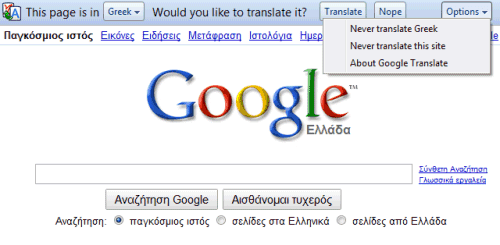
Google Chrome 4.1 added a feature that detects the language of a web page and lets you translate it. The feature can't be disabled entirely (there's a setting for disabling it in the latest dev build), but you can hide the translation bar for certain languages. For example, if you go to Google Greece's homepage, there's an option button that lets you disable the translation bar for google.gr or for all Greek web pages.


The easiest way to disable the translation feature for the languages you're familiar with is to define a list of your preferred languages:

* click on the wrench menu, select Options, go to the "Under the hood" tab.

* click on "Change fonts and language settings" and go to the "Languages" tab.

* add the languages you use the read web pages.

Related Posts Plugin for WordPress, Blogger...