Showing posts with label Google Bookmarks. Show all posts

Chrome Bookmarks Integrate with Google Search

Until recently, Google Bookmarks and Chrome Bookmarks were two separate features that didn't speak the same language. Even if you could save your Chrome bookmarks to a Google account, they weren't saved to Google Bookmarks. For some reason, your bookmarks are available in a special Google Docs folder.

Chrome bookmarks have a web interface, but it's likely that the obvious will happen: Chrome bookmarks could be saved to Google Bookmarks. Jérôme Flipo noticed that the Google Bookmarks OneBox already includes Chrome bookmarks. I've tried to find SmallNetBuilder.com and Google's OneBox returned it even if it was starred in Chrome, not in Google Bookmarks.


No More Starred Results in Google Search

Last year, Google replaced SearchWiki with starred results. You only had to click on a star to bookmark a search result and to quickly find it later.

Unfortunately, this feature is no longer available and you have to find other ways to bookmark search results: bookmarklets, Google Toolbar and other extensions.

A Google employee confirmed this change. "The Star feature no longer exists on Google. The Star function continues to exist through google.com/bookmarks though. Anything you previously starred will show up when you visit bookmarks."


Starred results and SearchWiki were really useful for refinding web pages, but probably not many people used them. These features were a lot more useful than Instant Preview, which is still available.

{ Thanks, Joel. }

Google Bookmarks Import Without Using Google Toolbar

I really don't understand why Google didn't add a feature that lets you upload a bookmarks file exported by your browser to Google Bookmarks. Google still recommends to install Google Toolbar in Internet Explorer or Firefox to upload bookmarks, but this shouldn't be necessary. That's like installing Picasa to upload your photos to Picasa Web Albums.

Fortunately, Mihai Parparita built a tool for exporting your Delicious bookmarks to Google Bookmarks and it can be used to upload any bookmarks file to Google Bookmarks. Here's how to do that:

1. Go to delicious.com and sign in. If you haven't used Delicious before, you'll sign in using a Yahoo account. If you've previously bookmarked web pages using Delicious, it's probably a good idea to create a new account.

2. Unlike Google Bookmarks, Delicious has a bookmark importing feature. Upload the HTML file exported by your browser and wait until all your bookmarks are imported.


3. Use Delicious to Google Bookmarks to import your bookmarks to Google Bookmarks. You'll end up with two new labels added by the importing/exporting tools: imported and delicious-export.


The nice thing about Mihai Parparita's tool is that it's open source and it can be modified to import HTML bookmarks file.

Find Great Pages Using Google Bookmarks

The only way to share your Google bookmarks is by creating lists. By default, lists are private, but you can share them with other people and make them public. The nice thing about public bookmark lists is that they're searchable and you can find them below your Google Bookmarks search results.

I entered the URL for one of my bookmarks (a JavaScript compressor) and Google returned a list of pages related to web development. I bookmarked some of the pages, but I could also copy the bookmarks to one of my lists.


When I searched for this blog's URL, Google Bookmarks returned a list with useful Google sites and Google-related blogs. I could also enter some keywords in the search box, but the results aren't always relevant.

Mobile Google History and Bookmarks

Google added a link to a mobile version of Google Web History at the bottom of the homepage for iPhone and Android users. The mobile Web History lists the most recent searches, the search results you've clicked on and your bookmarks. You can also remove some of your searches.

There are many missing features: you can't search the history, you can't restrict the queries to image search or Google Maps, you can't search your bookmarks or find bookmarks that have a certain label. Google only shows the most recent 10 bookmarks, which seems an arbitrary limitation. The most interesting feature that's not available in the desktop interface is showing thumbnails next to each web page.

"If you've enabled search history in your account (tap 'Settings' and select 'Save Searches' under 'Search History', then tap 'Save'), the history that you see is a combination of all your searches done while you are signed-in, whether you are searching from a laptop at home, your desktop computer at work, or your phone while on-the-go. Your mobile searches are marked with a little phone icon so you can tell them apart. For websites you've visited while searching on a desktop or laptop, you'll see screenshot thumbnails that can help you recognize and return to the right sites quickly," explains Google.


A quicker way to see your most recent searches is to click on the search box from Google's homepage.


If you don't have an iPhone or an Android phone, here are the links to Google's mobile site: http://www.google.com/m/gp and the mobile Web History: https://www.google.com/m/history?action=gethist.

Google Bookmarks Lists

Google tests a new interface for Google Bookmarks that lets you share your bookmarks.


You can now create bookmark lists and share them with other people. Google says that "lists make it easy to organize and share stuff you find on the web", but the new feature adds what was already available in Google Notebook, a great service that allowed you to create collections of interesting content from the web. Google stopped developing the service, but Google Notebook is still available for the existing users.

"We're working hard to improve Bookmarks and make saving and sharing stuff on the web easier than ever. That's why we've created lists. Like labels, lists let you organize your stuff into categories. But they can do so much more! For example, lists have the smarts to pull the most important information (like maps and reviews) from the sites you care about, and put it in a single place. You can easily see when a site in your list has been updated. Sharing and collaboration is easy, making lists an ideal way to plan a trip, research a purchase, or organize an event," suggests Google.


Here's an example of a public list that shows useful web pages related to Google Bookmarks lists and here's a list of web pages related to Seattle. You can follow a list to be notified by email when the list changes.


The nice thing about Google Bookmarks lists is that you can convert labels to lists. It's easy to add new web pages to a list thanks to the integration with Google Search, Google adds relevant thumbnails and monitors web pages for new content. And if you invite other people to your list, they can add new web pages, reorder the list, add comments and more.

{ via Google Blogoscoped }

Google Replaces SearchWiki with Starred Results

Google removed SearchWiki, the feature that allowed you to customize search results by promoting them, removing them or adding comments below search snippets. SearchWiki cluttered search results and the aggregated results from public SearchWiki pages were rarely useful.

SearchWiki has been replaced with a simple feature that lets you star search results. Click on a star next to a search results and you'll see it in a "starred items" OneBox at the top of the page. Another side effect is that the starred search results are added to Google Bookmarks, so you can quickly find them later. The "starred items" OneBox shows the most relevant bookmarks that match your query and it's the easiest way to search Google Bookmarks.


Those who used SearchWiki to remove search results or to add comments won't lose their changes. "If you previously removed a result, it will remain hidden whenever you do the same search in the future. These hidden results will be listed in a "removed results" section at the bottom of the page," explains Google. There's also a SearchWiki page that lists all your notes.

Even if I didn't like SearchWiki at the beginning, I ended up using this feature a lot. Adding web pages to search results pages and improving the snippets with custom annotations were a great way to refind web pages.

Google Bookmarks Promoted Search Results

If you are logged in to a Google account and you promote a search result using the SearchWiki icons, the web page is automatically saved to Google Bookmarks. For some reason, Google labels the web page using your query, so you'll end up with a long list of labels.


The list of SearchWiki annotations is already available at http://www.google.com/reviews/w, but it's not searchable. Now the list of annotations is more discoverable, but it makes it more difficult to find your bookmarks.

Some users customize Google's results using SearchWiki to associate searches with their favorite web pages. Marissa Mayer said that, on average, "40% of searches on any given day are repeat searches for that user".

A Better Interface for Google Bookmarks

Google promotes a new interface for Google Bookmarks, as part of Google Notebook. A similar interface can be accessed directly from Google Notebook if you click on "Unfiled bookmarks".

The old version of Google Bookmarks was integrated with the web history and allowed you to bookmark previously visited pages with one click. Another feature that's missing from the new version is full-text search, since bookmarks have been converted to notes.

On the bright side, the new interface is more responsive, it uses "infinite scrolling" to display the bookmarks and the notes can be formatted using a rich-text editor. Google Toolbar 5 (IE-only) lets you save the selected text from a page, which appears highlighted every time you visit the page.

The Best Firefox Extension for Google Bookmarks

If you use Google Toolbar for Firefox only because you like the bookmarking feature, there's a much better option: GMarks. While there are other extensions that provide an interface for Google Bookmarks, John Marshall's GMarks adds a lot of value to Google's basic bookmarking service.

GMarks can display the bookmarks almost the same as Firefox's native bookmarks: in a separate menu and in the sidebar. There's also a dropdown that can be added to Firefox's toolbars. The sidebar is useful when you want to perform full-text searches in your bookmarks without having to visit Google's site, while the GMark menu has an excellent option for managing bookmarks. If you click on "Organize bookmarks", you'll be able to import bookmarks, edit or delete bookmarks and create Gmail-like filters. For example, you can automatically add the label Google for any bookmark from this blog.


The extension can show the number of bookmarks for each label, a list of recent bookmarks and the most frequently visited bookmarks. To bookmark a page, use the familiar shortcut Ctrl+D or the GMarks menu.

One of the most frequent user requests for Google Bookmarks is nested labels and GMarks uses a little trick to simulate hierarchical labels: separate the labels with >. For example, if you want to label a bookmark as Shopping and Comparison, where Comparison is a sublabel of Shopping, just enter Shopping>Comparison when you create the bookmark. Since Google Bookmarks doesn't support this feature, the labels will appear to be nested only in GMarks.

And the cool features don't stop here: the extension suggests labels based on the web page's title, you can hide the bookmarks that have certain labels and there's an option for integrating the starred items from Google Reader.

Since the last time when I wrote about GMarks, the extension added the most interesting ideas implemented by the "competition" and managed to become THE Google Bookmarks extension. If there's anything that could be added, maybe it would be useful to completely replace Firefox's bookmarking system by hiding all the interface elements related to the native bookmarks and replicating all the changes to Google Bookmarks locally.

{ Thanks, Dr. Azrael Tod. }

Google's Broken Bookmarking Systems

Google hasn't yet launched a proper bookmarking system. Google Bookmarks was just a small extension of Search History and became more useful after the integration with Google Toolbar. Notebook lets you clip content from the web, but it's more useful for research and not for bookmarking web pages. Google Reader's shared items are limited to your subscriptions or to web sites that have feeds and they're not structured. The not-yet-officially-released Shared Stuff widget wants to unify the ways people share web pages and it's more like a meta social bookmarking service.

In this guest post, Michael Searcy expresses his frustration with Google's failed attempts to develop a service for bookmarking and sharing web pages.


Like most people I want Google to add a social aspect to "Google Bookmarks". The crazy part is they already have a disassembled version of a social bookmarks network. The parts are: Bookmarks, Reader, Notebook & Shared Stuff.

Share

Web Pages

Feeds

Tags

Contacts

Bookmark

Profile

Bookmarks

no

no

no

yes

no

yes

no

Reader

yes

yes

yes

yes

yes

no

yes

SharedStuff

yes

yes

yes

yes

yes

yes

yes

Notebook

yes

yes

yes

yes

no

yes

no


Bookmarks: it's great for across computer access but has no sharing, or interaction with other Google services.

Reader: It is awesome. It has changed my life! I find and share more stuff with it, than with normal browsing. You can "star" items that you want to lookup later for reference, but if you want to bookmark something you have to invoke some hackery (you can open the item outside of reader and bookmark it with a toolbar shortcut, or use a Greasemonkey script which doesn't work). Another limitation not shown in the chart is that you can't share anything you are not already subscribed to. Also on a shared reader page you don't get a summary view (for people with lots of posts), you can't search and you definitely cant slice it up by tags/labels.

Shared stuff: It's interesting because if you find something cool in Reader you can star it, then later when you get around to reading it again you can open it separate and bookmark it. Then if you open it from your bookmarks you can use the Email/Share toolbar item to Share it and it will Show a "star" saying its bookmarked. Other cool aspects are that you can Share through Google, share through other social networking services, email it to your low-tech friends, and you can even tag your items! You can do all that, but you can't bookmark with Google Bookmarks? You can use every bookmark service except Google. You're kidding me right? So now we can share bookmarked Items in a round about way, but we can't bookmark shared items!!!

Notebook: Its nice for a web notebook/clipboard with multiple headings or "notebooks" (which is repetitive but that's what they are called) and the sharing function is nice, if your into sharing notebook type content. Then they tried to incorporate bookmarks, but they imported them and called them "Unfiled Bookmarks", which means it's a bookmark and it's not associated with a "notebook". Which is extra weird if you "move" a bookmark to a notebook. Then you get your Markbooks confused with your Booknotes and ..... Wait. This is just madness. Its just 2 different classes of labels. But you can share "notebook" class labels but not "labels". So close.

Google Notebook Adds Labels and Bookmarks

Google Notebook added the most requested feature: labels. Now you can label each note and see all the notes that have a certain label.

The application imports all the labels and web pages from Google Bookmarks and places them in a new notebook titled "Unfiled". Adding a new note in this special notebook actually creates a new bookmark.


The organization of a notebook is more flexible: the notes can be sorted by date, by label and filtered by label.


Google Notebook's extension was also updated and has a new option: select the text from a web page and click on the small star to add it as a note. Now you can use the extension to add bookmarks by clicking on the star when the "Unfiled" notebook is selected.


All in all, the integration between Google Bookmarks and Google Notebook is interesting, but it's not very transparent in the interface. Every bookmark becomes a note in a special notebook, but "Unfiled" should be replaced with "Bookmarks".

Google Notebook will also add offline support using Google Gears in the near future, so you can access your notes and bookmarks even when you don't have an Internet connection.

{ Thanks, David Hartunian. }

Export Your Google Bookmarks

Google Bookmarks offers a simple way to export your favorite links: as a bookmarks.html that can be imported natively in most browsers. You can also use this to backup your list of links, to view them online or to move them to other bookmarking web services.

To import bookmarks or to easily manage them, you need Google Toolbar. Hopefully, Google will improve the way bookmarks are displayed, integrate the tool with Google Notebook and Google Reader and let you share your links.

Until then, Google Bookmarks is a cool way to bias Google's search results towards your favorite sites...


... to view related sites by clicking on the label displayed after the snippet or to see your bookmarks in Google Toolbar's suggestions:

Google Bookmarks FAQ


A small guide for people that continue to ask how to use Google's low-profile bookmarking service.

What is Google Bookmarks?
Google Bookmarks is an online service that lets you save your favorite sites and attach labels and annotations. Unlike the bookmark feature from your browser, bookmarks are stored securely online, so they are accessible even if you're using other computers.

There are many sites that do that. What's so different about it?
The most important features that set Google Bookmark apart from other services is that all your bookmarks are private (nobody else can see them) and fully searchable. You are no longer restricted to the title of the page, the description and the URL - you can search the entire page. A similar service is the new version of Yahoo Bookmarks, currently in beta.

Can I import my bookmarks?
For Firefox and Internet Explorer, you can download Google Toolbar, and use the "Import bookmarks" option that appears on the drop-down menu next to the Bookmarks icon. For other browsers, you should import your bookmarks to Firefox and use Google Toolbar as explained before.

If you use other online bookmarking tools, you should find an option to export your bookmarks in their support center. For example, in del.icio.us go to Settings and select Export/backup to save your bookmarks in a HTML file that can be imported into your browser.

How can I export my bookmarks from Google?
Easy, just go to this page and you'll download a file called bookmarks.html, that can be imported in your browser. You can also export the bookmarks as a feed, but it won't be very useful unless you're a developer.

How can I add bookmarks?
If you've already installed Google Toolbar, you can use it to add or remove bookmarks. Just click on the blue star to add the current site as a bookmark. Click again on the star to choose one or more labels.

For Firefox, there is a very good extension called GMark that shows your bookmarks in the sidebar and another extension that mimics Google Toolbar and adds drag-and-drop.

But to add bookmarks there's a very simple bookmarklet that should work on almost any browser. Just drag this to the links toolbar: Google Bookmark. You'll also find it at the bottom of the Google Bookmarks homepage.

How can I search my bookmarks?
Googe Toolbar adds a new option for bookmarks in the list of search engines. If you type the first letters from the title of a bookmark, Google Toolbar gives you the option to load that site.

You can also use Gmarks that searches as you type or you can just go to the web interface at google.com/bookmarks. Search the same as you'd do at Google.com. To restrict your search to a label, add label:name to your query (note that labels are case sensitive).

Is there an option to see my bookmarks in iGoogle?
There's a gadget that lists all your bookmarks by label and lets you edit them. You can add it multiple times to see bookmarks from different categories.

Will these bookmarks affect Google's search results?
You'll see the labels selected for a bookmark next to its corresponding snippet in the search results. Bookmarks affect Google's search results only for you. Google improves the relevancy of the search results by tailoring to your interests, so the order of the search results could change in some cases. A bookmark in the search results:


Will I be able to access my bookmarks from any computer?
The bookmarks are stored on Google's servers, so you can just log in and have instant access to your bookmarks from your personalized homepage (if you added the gadget I mentioned before) or at google.com/bookmarks.

Is there a way to store the full content of my bookmarks on Google's servers?
No, but you can try Google Notebook, that lets you select the content of a page and save it as a note.

How can I bookmark my favorite posts from Google Reader?
Install Greasemonkey in Firefox, restart the browser and add this script. You'll see a new "Add bookmark" option below each post.

I want to delete all my bookmarks and start from the scratch.
There's an option to delete all the bookmarks in this page's left sidebar (search for "delete all"). To delete only the bookmarks that have a certain label, use Google Toolbar.

Google Bookmarks Gadget


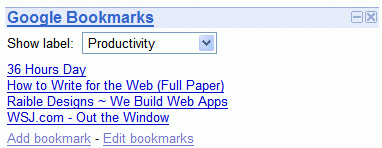
This gadget for the personalized homepage has been around for a while, but now it looks better and has new features.

The purpose of the gadget is to let you access your bookmarks. As you probably now, Google Bookmarks is a service that stores private bookmarks and could be used in connection with Google Toolbar or other extensions.

The gadget lets you restrict the list of bookmarks to a certain label. It's also easy to edit bookmarks or to manually add bookmarks. The only missing feature is search.

Import del.icio.us Bookmarks into Google Bookmarks

Mihai Parparita from Google has written a(nother) cool script that allows you to add the bookmarks from del.ico.us to Google Bookmarks. The live version is available on his site.

Unlike del.icio.us, Google Bookmarks keeps your favorite web pages private and lets you search their content. You can manage your bookmarks from the site, using Google Toolbar for IE or using some unofficial Firefox extensions.

Related:
On bookmarks
Related Posts Plugin for WordPress, Blogger...