Showing posts with label InOut. Show all posts

Google Bookmarks Import Without Using Google Toolbar

I really don't understand why Google didn't add a feature that lets you upload a bookmarks file exported by your browser to Google Bookmarks. Google still recommends to install Google Toolbar in Internet Explorer or Firefox to upload bookmarks, but this shouldn't be necessary. That's like installing Picasa to upload your photos to Picasa Web Albums.

Fortunately, Mihai Parparita built a tool for exporting your Delicious bookmarks to Google Bookmarks and it can be used to upload any bookmarks file to Google Bookmarks. Here's how to do that:

1. Go to delicious.com and sign in. If you haven't used Delicious before, you'll sign in using a Yahoo account. If you've previously bookmarked web pages using Delicious, it's probably a good idea to create a new account.

2. Unlike Google Bookmarks, Delicious has a bookmark importing feature. Upload the HTML file exported by your browser and wait until all your bookmarks are imported.


3. Use Delicious to Google Bookmarks to import your bookmarks to Google Bookmarks. You'll end up with two new labels added by the importing/exporting tools: imported and delicious-export.


The nice thing about Mihai Parparita's tool is that it's open source and it can be modified to import HTML bookmarks file.

Export All Your Google Documents in 3 Steps

Google made it easier to export all your documents, spreadsheets, presentations and PDFs from Google Docs:

1. right-click on one of the files from the docs list and select "Export"


2. check "export all your files (up to 2 GB)" and click on "Continue"


3. wait until the files are archived or click on "Email when ready"


While this is a great way to backup all your files, an application that synchronizes your documents would be more useful.

{ via Google Docs Blog }

Google Docs Batch Export

Now you can export all your documents, spreadsheets, presentations and PDFs from Google Docs in a ZIP archive.

The most difficult part is to select all your files: you need to go to the "All items" section, scroll down to the bottom of the documents list, click on the checkbox button from the toolbar and then on "select all visible". Google Docs uses "infinite scrolling", but it's not smart enough to select all the documents from a view.


After selecting all your files (or only some of them), right-click and choose "export". A dialog lets you choose the download format for each kind of file: Microsoft Office formats, OpenOffice formats, PDF or some other formats.


Click on "continue" and Google starts to compress your files and create an archive. If you have a lot of documents, Google can send you an email when the files are zipped.


{ Thanks, StareClips.com }

Export Google Sites

Google has released an API for Google Sites that lets you create or edit pages, upload or download attachments, monitor the activity of a site programmatically. The API could be use to create a new interface for Google Sites, to upload files from other sources or to migrate your data.

Google's Data Liberation team built a Java application for importing and exporting Google Sites. The application lets you export the pages from a site and all their attachments to a folder.

"The folder structure of an exported site is meant to mimic the Sites UI as closely as possible. Thus if exporting to a directory "rootdirectory," a top-level page normally located at webspace/pagename, would be in a file named index.html, located in rootdirectory/pagename. A subpage of that page, normally located at webspace/pagename/subpage, would be in a file named index.html in rootdirectory/pagename/subpage. Attachments are downloaded to the same directory as the index.html page to which they belong," mentions the user guide.

You should only enter the domain name if you use Google Apps. "Webspace" is the name of your site: http://sites.google.com/site/sitename/.


Unfortunately, you can't use this tool to import HTML files to an existing site. The importing option is only useful for the sites exported using the same application.

Export the Locations Saved in Google Maps

Google Maps saves the most recent 100 locations typed in the search box so you can easily retrieve them. If you want to migrate to a different Google account or you'd like to view the locations in Google Earth, Bing Maps or another mapping service, you can now export the saved locations to a KML file.

In addition to exporting the locations, Google Maps also lets you import a KML file that includes a list of placemarks.


This is just one of the many Google features that prevent data "lock-in". Google has a Data Liberation team "whose singular goal is to make it easier for users to move their data in and out of Google products". It's a great initiative from a company that has always encouraged competition. If Blogger is no longer your platform of choice, you can migrate your data to WordPress or a different service. If Gmail is frequently down, has a poor spam filter or it's no longer your favorite webmail service, you can auto-forward your mail to a different service and fetch the existing messages using POP or IMAP.

"Many web services make it difficult to leave their services - you have to pay them for exporting your data, or jump through all sorts of technical hoops -- for example, exporting your photos one by one, versus all at once. We believe that users - not products - own their data, and should be able to quickly and easily take that data out of any product without a hassle," explains Google's public policy blog.

Further reading:

* DataLiberation.org
* Google's public policy blog
* This blog's In/Out label

Import iGoogle Feeds into Google Reader

Google Reader added an option to import the feeds from iGoogle, but you'll be able to use it only the first time you load the feed reader or by opening the welcome page. I assume that Google Reader wanted to help iGoogle users who need a more powerful feed reader.

The process of importing feeds is extremely painful, since Google Reader subscribes to each feed one by one. If you only have 5-10 feeds in iGoogle, it will import the feeds quickly, but you'll need to wait a lot longer if you have more than 50 subscriptions.

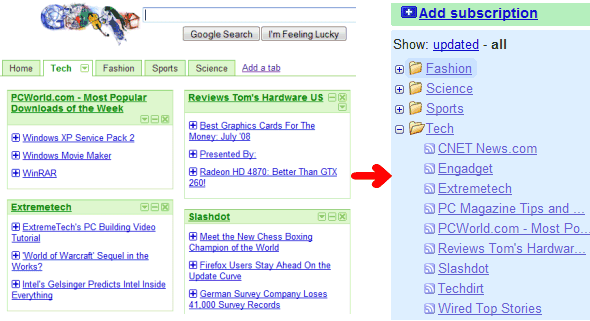
You can select the feeds that should be imported and Google Reader will convert iGoogle's tabs into folders.


Last year, I wrote a script that exports iGoogle feeds to OPML, so you can import them in other feed readers. It's more difficult to use than Google Reader's feature, but at least it's efficient.

Export Gmail Filters

I'm a big fan of Google's Data Liberation team and many of the posts from this blog showed how to export data from a Google account. The first notable project of the Data Liberation team was Google Blog Converters, a way to migrate the posts and comments from a blogging service to a different service ("the initial release provides Python libraries and runnable scripts that convert between the export formats of Blogger, LiveJournal, MovableType, and WordPress").

The most recent project is a Gmail Labs feature that lets you import and export filters. "Filter import/export, available today in Gmail Labs, helps you work with filters in bulk, rather than just one at a time. The basic function is simple: turn it on from the Labs tab under Settings, and from the Settings > Filters page you can download a file containing some or all of your filters or upload a file to create a set of filters all in one go."

You'll export an XML file that lists your filters. The file can be edited in a text editor like Notepad, using the format described here, with some changes. Hopefully, the Email Settings API will be available to all Gmail users, even as a simplified way of migrating Gmail's settings to a new Gmail or Google Apps account.


How to enable this feature?

Assuming that you have a supported browser, go to Gmail Labs, use your browser's find feature (Ctrl+F) to search for "filter import", enable the option and then click on "Save changes" at the bottom of the page. The new feature extends the Filters section from Settings by adding options to export some of the filters or import a file containing filters.

Export Google Notebooks

Google Notebook provides options to export each notebook as HTML or in the Atom format, but it's not very easy to export all your data. A Greasemonkey script automates the tedious work by reformatting the mobile page and adding links to the HTML or Atom version of each notebook.

The default format is Atom and you should use it if you want to edit the notebooks on your computer and then import the files to Google Notebook. It's a good idea to use the HTML format for archiving your notebooks.

This script requires Firefox, Greasemonkey extension and a download manager like DownThemAll that saves all the files linked from a page or some of them.


After clicking on "Export notebooks", right-click and select "DownThemAll!". Choose a folder where to save the files, type nbid in the "Fast filtering" box and click on "Start".


Peter Shafer wrote a similar script for exporting Google Docs documents.

Export Files from Google Page Creator

You probably heard that Google intends to close Google Page Creator and migrate the users to Google Sites, a service that seems to be targeted to a different audience and that lacks many features available in Page Creator. Google Sites will add some of the missing features by the time Google closes Page Creator, but those who want to move to a different service or maybe to buy a domain can already export the files.

Requirement #1. There are three kinds of files that are trapped inside Page Creator: uploaded files and web pages created using the editor which can be public or unpublished. The following exporting tool can only work for uploaded files and the public web pages. If you have pages that are unpublished and you want to export them, click on "Publish all changes" in the sidebar. You can undo this action later.

Requirement #2. Another prerequisite for the exporting tool is a software that downloads all the files linked from a page. For Internet Explorer, try the excellent download manager FlashGet (I use the classic version). For Firefox, there's an extension called DownThemAll that has some of the features from FlashGet. In both cases, you'll have to restart the browser before continuing. As usually, Opera users don't need third-party software for advanced features: there's a sidebar panel that shows all the links from a page.

Requirement #3. If you read this in a feed reader, visit the site to view the exporting form.

How to export the files.

All sites from Google Page Creator have a sitemap that lists all the public files from a site: it's available at SITENAME.googlepages.com/sitemap.xml. Just go to your site's homepage and add /sitemap.xml in the address bar. To copy the content of the XML file in the box below, you could right-click, select "view source" and copy the code (for Firefox, Opera) or open the file http://SITENAME.googlepages.com/sitemap.xml in Notepad.


After clicking on "Obtain URLs", you should see a pop-up window that lists all the files from your Page Creator site. Right-click inside the page and select "Download all by Flashget" or "DownThemAll!", depending on your browser. Make sure to check "All files" in DownThemAll and to choose a folder where the files will be copied. In Opera, press F4, click on the "Links" panel, select all the links using Ctrl-A and click on "Save to Download Folder".


Unfortunately, there's still some manual editing you need to do for the pages created using the editor: replace <img src="name.gif/name-full.jpg" style="border: 0pt none ;"> and similar code with <img src="name.gif" style="border: 0pt none ;">.

Two free alternatives to Page Creator are Weebly and Synthasite. Wall Street Journal has an article that explains how to buy a domain and host a site without paying too much.

{ Inspired by Peter Dawson. }

Import OPML Files to iGoogle

While exporting iGoogle feeds to OPML could be used if you want to move your feeds to another service, importing feeds from an OPML file is a good way to add a large number of feeds to iGoogle.

Here's how you can import the feeds from an OPML file to iGoogle:

1. Obtain an OPML file from your feed reader or personalized homepage:
* Google Reader lets you export your subscriptions in the Settings (direct link to the OPML file)
* Bloglines has a link in the main interface: "Export Subscriptions"
* in Netvibes you have to click on Add content > Add a feed > Export
* My Yahoo has a difficult-to-find OPML file
* Windows Live lets you export your subscriptions in the advanced options
* to export Firefox's live bookmarks, install an extension.

I only tested the script with the OPML files exported by Google Reader, Bloglines, Netvibes, My Yahoo and Windows Live Personalized Homepage, so the conversion might not work for other feed readers.

2. Open the OPML file in a text editor and copy all the content below. (If you are concerned about sharing private data, you should know that this is just a client-side script that doesn't store your data and it doesn't send it to a third-party service.)


3. What you got is the content that needs to be added at the bottom of iGoogle's settings file. Log in to your Google account, go to iGoogle's settings page and scroll to the Export / Import section. Click on "Export" to download iGoogle-settings.xml, a file that contains a list of all your gadgets, feeds and their settings. Don't close the iGoogle settings page because you'll need to import the file later.

4. Backup your iGoogle settings file. Create a copy of the iGoogle-settings.xml file, just in case something goes wrong. You'll be able to import the settings and go back to a working iGoogle.

5. Open iGoogle-settings.xml in a text editor and add the text obtained at the step #2 before the line that contains </GadgetTabML> (the last non-blank line), like you see in the screenshot.


6. Save the file and import it to iGoogle settings, in the Export / Import section.

All folders from the OPML file should be converted to iGoogle tabs, which can be renamed and reordered in the settings. iGoogle doesn't save the state of an item (read/unread) and only lets you see up to 9 recent items from a feed, but it's a great dashboard for your feeds.


Related:
Export iGoogle feeds to OPML

Export iGoogle Feeds to OPML

I've heard many people complaining that iGoogle doesn't offer an option to export feeds. Some of them wanted to use a feed reader like Google Reader, while others intended to migrate to competing services like Netvibes or Pageflakes.

Thankfully, iGoogle lets you export your settings and gadgets as a XML file, which can be easily processed and transformed into an OPML file.

Here's what you need to do if you want to export the feeds from your iGoogle page in the OPML format:

1. Log in to a Google account.

2. Open this page, right-click and select "View source" (for Internet Explorer), "View page source" (Firefox) or "Source" (Opera). Copy the entire content of the file to the clipboard (Ctrl+A, Ctrl+C). Alternatively, download iGoogle's backup file and open it in a text editor.

3. Paste the code below and then click on "Convert to OPML". (If you are concerned about sharing private data, you should know that this is just a client-side script that doesn't store your data and it doesn't send it to a third-party service.)


4. Save the output in a XML file: igoogle-subscriptions.xml.

To import the file in Google Reader, go to Settings, click on Import/Export and upload the OPML file. In Netvibes, the steps are less obvious: Add content > Add a feed > Import. Most feed readers have an option to import a list of subscriptions.

I tested the script for converting iGoogle's backup file in IE7, Firefox 3, Opera 9.5, using Google Reader and Netvibes as destinations.


Related:
Import OPML files to iGoogle

Export Data from Google's Services

Google mentioned in many occasions that it doesn't want to trap users' data and some of its services have started to provide import/export options. Here are some of the ways to export your data from Google's services:

* iGoogle lets you download the list of gadgets, feeds, themes and their corresponding options if you go to the settings page and scroll down to the "Export / Import" section. The resulting XML file can be imported to another Google account and those who are familiar with XSLT could covert iGoogle's data file to OPML, so you can subscribe to the feeds in Google Reader or any other feed reader.

* Google Calendar has options to export your calendars one by one as iCal files, but it's much easier to export all the calendar you created by going to: http://www.google.com/calendar/exporticalzip.

* Google Docs lets you export your documents as an archive of HTML files and images. To export your files, restrict the Docs list to documents, select all the files and choose "Save as HTML (zipped)" from "More actions". Zoho can already import your documents and there's a Greasemonkey script that helps you download all the files from Google Docs, not just the documents.

* Blogger added in the experimental version available at draft.blogger.com an option to export the posts and comments from your blogs as an Atom feed. Hopefully, developers will write scripts that convert Blogger's feeds to the formats accepted by other blogging services.

* Google Bookmarks can be exported as a HTML file, but for some reason browsers can no longer import the bookmarks. The web history or search history can be exported as a RSS feed: http://www.google.com/history/lookup?q=&output=rss&num=1000 (replace 1000 with the number of items you want to export).

* Gmail lets you export your contacts as CSV or vCard, but Google automatically adds all the people you send a reply in the list of contacts.

It would be nice to export all your data from a single page, so you can delete a Google account or switch to a competing service without losing your data.

Export Your Google Calendars

If you created many calendars in Google Calendar and you want to download them so you can view them in a desktop client, there's a simple way to export all the calendars. Just open https://www.google.com/calendar/exporticalzip and you'll get an archive that contains your calendar data.

"In the resulting compressed folder, you'll see an ICS file for each of the calendars to which you have permission to make changes and manage sharing. Note that this method will not export calendars in your Other Calendars list (e.g. public calendars you've added to your list, shared calendars with view access only, etc.)," explains Google.

If you use iGoogle to view your calendars, it's good to know that there's a new version of the Google Calendar Gadget that uses infinite scrolling for the agenda and it shows event descriptions without opening a new page. Like in the previous version of the gadget, you can select multiple calendars to view them on your personalized Google homepage.

Google Notebook Exposes More Exporting Options

Google Notebook updated the editing toolbar and to make it look more consistent with Google Docs. There are also new exporting options:

* you can export to HTML any notebook, not just public notebooks

* notebooks that include addresses can be visualized on a map and converted into a personalized map

* public notebooks already had feeds, but it's much easier to subscribe to the feeds by clicking on "export as RSS" in the Tools menu (ironically, Google uses the Atom format). This should be useful to track the changes in collaborative notebooks.


Google Notebook integrates with a lot of Google services: you can find a "Note this" option next to Google's search results, there's an option to import some text from public domain books in Google Book Search, Google Bookmarks are added to a special notebook, you can export a notebook into Google Docs to create a document or to save it as PDF, the latest version of Google Toolbar for IE integrates with Notebook, there's an iGoogle gadget and a cool integration with Blogger thanks to the hAtom microformat. Google Notebook is actually a web clipboard, a bridge between web applications and I expect to see options to identify structured content, bookmark videos, events, contact details, code snippets and more.

{ Thanks, AniMatrix. }

Backup Your iGoogle Page

iGoogle, previously known as Google's personalized homepage, offers two options to backup your gadgets and feeds at the bottom of the settings page.


There's an option to backup the iGoogle page on Google's servers. While this may seem pointless, it's useful to backup your page before adding gadgets that might create problems.

The second option is to download an XML file that includes all the tabs, layouts and themes, the feeds, gadgets and their settings. The XML file can be imported in any iGoogle page, so this is a good way to migrate the page to a different Google account. You can also download the XML file to change the settings in a text editor and then upload the new version.


{ via Blogoscoped Forum }

Export Google Presentations to PowerPoint

Google Presentations (or Presently) finally added a feature that prevented most people from using it: exporting the presentations to a format that could be imported in Microsoft Office or OpenOffice. Now you can save your presentations as PPT and open them in your favorite desktop applications when you're offline or send them to other people. You can still export the presentations as PDF, a great format for printing.


Here's the list of formats supported by the three Google Docs applications:

Writely (documents)Trix (spreadsheets)Presently (presentations)
Microsoft Office formatsimport, exportimport, exportimport, export
OpenDocumentimport, exportimport, export---
PDFexportexportexport
RTFimport, export------
HTMLimport, exportexport---
TXTimport, exportimport, exportexport


Some other features that should be available soon in Presently: inserting tables, adding YouTube videos and viewing presentations offline.

Upload Old Email to Google Apps

Google Email Uploader is a tool created by Google to make the transition to Google Apps easier. The application imports to a Google Apps account the messages and contacts stored locally in Microsoft Outlook 2002+, Outlook Express and Thunderbird. It doesn't modify the sent dates from your messages and it converts the folders into Gmail labels. Google Email Uploader is open source and it works only in Windows XP and Windows Vista.

The uploader works only in the premier edition of Google Apps, even though Google says it should work in the standard edition, as well. If you try to use it with a standard Google Apps account, you'll get this error message: "you are not authorized to use this feature". The most likely reason why the application works only in the paid version of Google Apps is that it uses the email migration API, which "allows administrators and users of Google Apps to migrate mail from legacy email systems into their domain's hosted Gmail accounts". The API is enabled for the paid accounts and it's also used by gMOVE, a tool that migrates Outlook calendars, email, contacts and tasks to Google Apps for $19.

You can also import old mail to a Gmail account using IMAP: simply drag your old messages to Gmail's inbox in an email client, but the new application should be more reliable.

Download a Gmail Conversation

Wouldn't be nice if you could save a Gmail conversation so you can read it offline? Using an email client to access Gmail using POP3 or IMAP is an option, although it's not trivial to recreate the thread and to download everything, including the attachments.

To download a Gmail conversation, you could use the print feature. In order to prevent Gmail from actually printing your messages, disable JavaScript after opening the conversation or disconnect your printer. Then click on "print all" in Gmail's right sidebar...


... and save the generated page as a complete web page. This will create a HTML file and a folder with images, but it won't save the attachments. You can now re-enable JavaScript in your browser to be able to use Gmail's AJAX interface.

If you want to save all the attachments from a conversation as an archive, you could save them one by one. Alternatively, go back to the conversation and click on "forward all". You'll create a new message that concatenates all the messages and the attachments from that conversation. Send the message to yourself and click on "Download all attachments" when you receive the message. To save space, delete the individual message you've sent to yourself after downloading the attachments (make sure you don't delete the entire conversation).

Save Google Presentations as PDF Files

Google Presently, the poorest member of the Google Docs family, added some new features and they're almost as exciting as the previous update. Now you can finally save your presentation in a decent format: PDF and this is especially useful if you want to print the presentation. To select the number of slides displayed on a page before exporting the presentation, choose the printing option.

Presently also redesigned the rich text editor's toolbar and added a small number of shapes you can insert into your slides: block arrows, circles, bubbles.

While Presently's biggest problem is the poor performance, there are many basic features that are missing: export to PPT, slide master, tables etc.

Import Your Hotmail Messages into Gmail

I finally found an use for Microsoft's Windows Live Mail, a mail client that replaces Outlook Express as the light version of Outlook. Windows Live Mail has a unique characteristic: it's free and it allows you to access Hotmail accounts. Microsoft also provides a plug-in for Outlook with an exuberant description:

"With Microsoft Office Outlook Connector, you can use Microsoft Office Outlook 2003 or Microsoft Office Outlook 2007 to access and manage your Microsoft Windows Live Hotmail or Microsoft Office Live Mail accounts, including e-mail messages and contacts for free!"

Microsoft probably thinks it makes you a favor by providing ways to access your mail from a desktop client, so it uses a proprietary mechanism that can only be interpreted by Microsoft's software.

But I digress: Windows Live Mail is a good way to migrate the messages from your old Hotmail accounts to Gmail.

1. Enable IMAP for Gmail.

2. Download Windows Live Mail. Microsoft no longer links to the standalone version of the product and it forces you to install a package, but you can choose the software you want to install.

3. Add the Hotmail accounts from Windows Live Mail's interface.

4. Add your Gmail account and make sure you manually configure the IMAP settings.

5. To prevent some new Gmail labels from being created, right-click on your Gmail account from Windows Live Mail's sidebar, select Properties, go to the IMAP tab and uncheck "Store special folders on IMAP server".

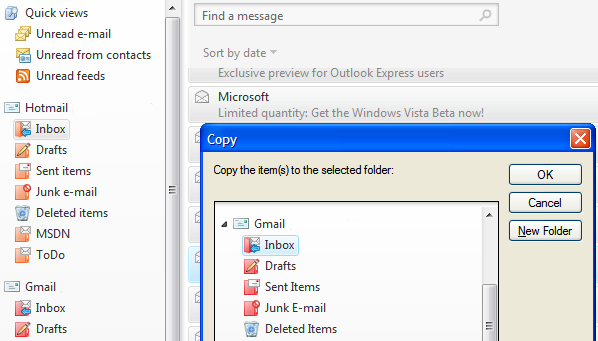
6. Then go to the inbox of each Hotmail account, select all the messages (Ctrl+A), right-click, choose "Move to folder..." (or "Copy to folder..." if you want to keep them in Hotmail) and select the Inbox of your Gmail account (or create a new folder). You should repeat this for each folder created in Hotmail.


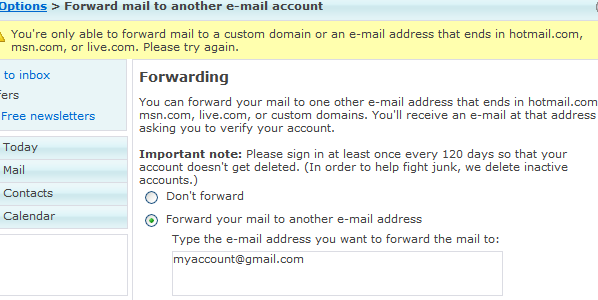
If you don't expect to receive other message in your Hotmail accounts, uninstall Windows Live Mail. Otherwise, check your Hotmail accounts from time to time and manually move the messages to Gmail. Microsoft doesn't allow you to create rules for IMAP and HTTP mail accounts, so you can't forward new messages to Gmail. If you try to use the forwarding option from Hotmail, you'll notice that Microsoft still tries to keep your mail hostage.

Related Posts Plugin for WordPress, Blogger...